Search & Discovery
Half the fun of FAWM is writing and sharing new music. The other half is exploring the website, and finding new music by other fawmers, and getting inspired by them!
This page is organized into the following sections:
- General Site Navigation for overall usage
- Songs for browsing, filtering, and understanding song listings
- Fawmers for discovering fellow songwriters on FAWM
- Forums for getting around in community discussions
General Site Navigation
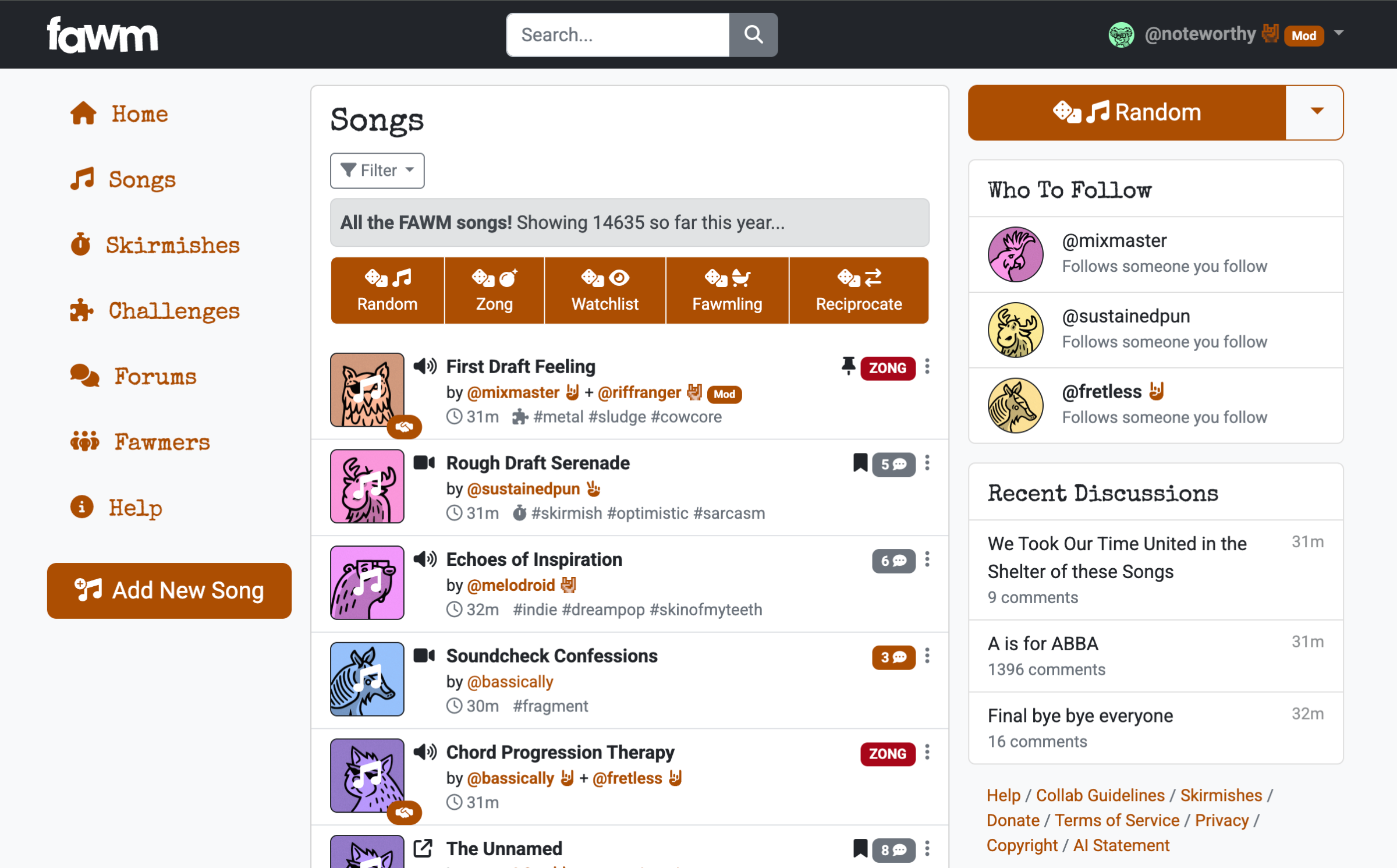
There are four main sections of the FAWM interface:
-
Header: FAWM logo (home link), search (on desktop), and account drop-down
-
Menu: Links to areas of the website like songs and forums (see below) and search (on mobile); the button to add new songs is also in this menu!
-
Content: The song, forum, profile, listing, or search results you are currently viewing
-
Sidebar: Random song buttons, recommendations, misc. links (see more below)
In desktop browsers, these elements are clearly laid out with the header at the top, and the other three sections arranged from left to right:
Here is the same page on mobile. The header is on top with the content directly below:
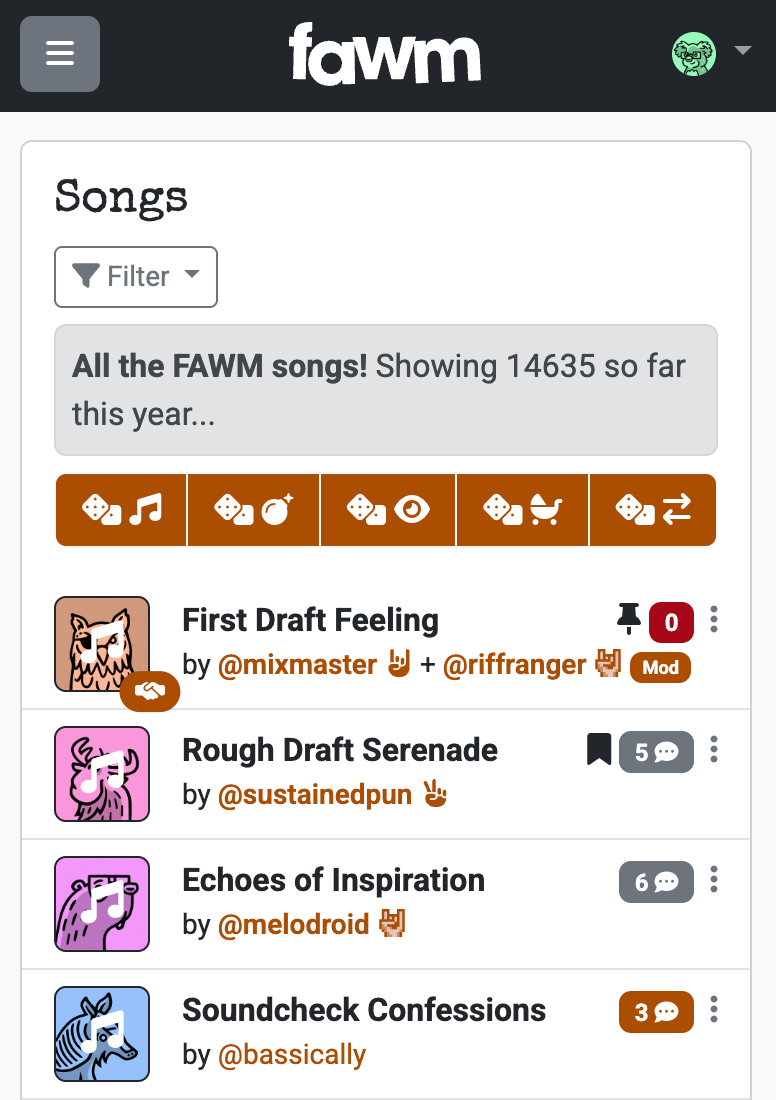
To access the main menu on mobile, you need to tap the "hamburger" icon [] in the upper-left corner of the header, and it will appear. The search box (see below) is also located in this menu on mobile devices and other narrow screens.
The sidebar is tucked all the way to the bottom as a footer.
Tablets
Tablets and other "medium-screen" devices will be somewhere in between, with the menu and sidebar sometimes clearly visible, and sometimes requiring you to tap the "hamburger" icon [] or scroll.
Search
You can search the website for keywords by using the Search box in the header or menu.
This returns results organized by type: songs, forums, and fawmers (see below), as well as skirmishes and challenges, each on their own tab showing the number of matches.
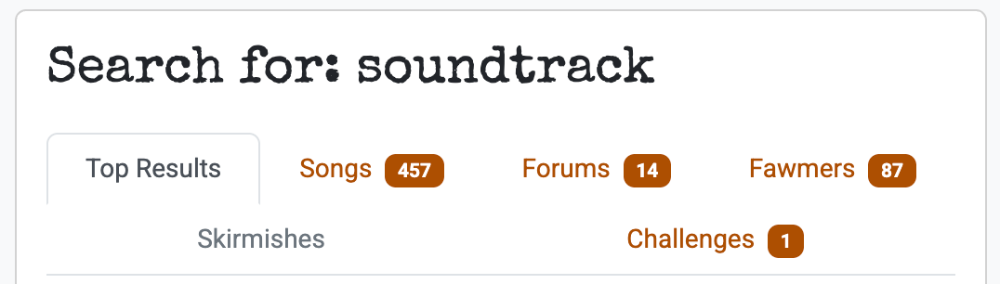
The default view is also a "Top Results" page that summarizes the best few matches to your keyword(s). When you click through to the matching song, forum, or profile your keyword will be highlighted so you can easily spot it in context!
Tip: #Hashtags In The Search Box
If your search keyword begins with a hash (#) symbol, it will give you tag search results (below).
Tag Search
Almost anything in FAWM can be "tagged" — songs, profiles, comments, whatever! When you use #Hashtag notation, the site will automatically convert each tag into a link that goes to a search of other pages that use the tag (see Text Formatting for the mechanics of this).
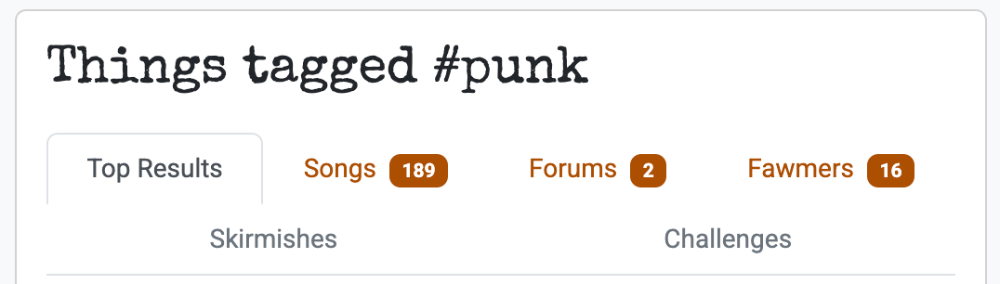
There are many uses for tags:
- Genre: #80s, #DeathMetal, #Folk, #TripHop
- Instrument: #Cello, #Trumpet, #LiveDrums
- Mood: #Cinematic, #Happy, #Melodramatic
- Process: #4Track, #AcousticOneTake, #FieldRecording
It is also common practice for songwriting games or challenges in the forums to get their own unique hashtag. Also sub-communities have created their own tags to help find each other (such as #FUC for the "FAWM Ukulele Club" which has their own mascot).
This is a particularly fun way to find interesting songs or fawmers' profiles!
There are also a few common tags like #NeedsLyrics, #NeedsMusic, or #NeedsCollab that are used by fawmers looking for an "open" collaboration. You can search these tags if you're looking for someone to work with.
#Hashtag Normalization
The Internet has a variety of tagging conventions, from #lowercase to #CamelCase to #snake_case to #dash-tag and even the ever-dreaded #Camel_snake-dAsHtAg ...
FAWM will recognize them all! However, while FAWM preserves your original tag formatting in your post, we do convert all tags to #lowercase to simplify tag indexing and search.
Recommendations
On each new page, you will receive a set of recommendations in the side bar to the right (or the bottom footer, on mobile).
These are another fun way to explore songs, fawmers, forums, challenges, and even trending tags! To be honest, the current algorithms are simple heuristics we haven't worked on for very hard, but we plan to improve them over time to be more useful...
Songs
The Songs page is at the heart of FAWM, since fawmers spend the vast majority of their time on the site listening to and giving feedback on each other's music.
It comprises a "master list" of all the music posted during the challenge, sorted from newest to oldest. And it updates every few minutes.
There's a lot of useful browsing information packed into this list, so let's unpack it a bit:
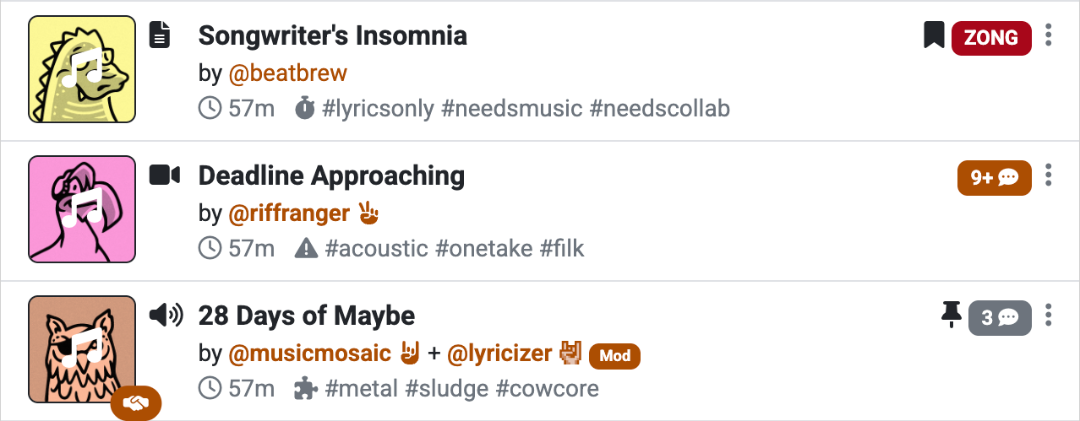
Each row is in the list is one song, with the following elements, left-to-right:
- Album Art, or song-poster's avatar image
- This is a link to the song's page
- If the song is a collaboration, the icon will be in the bottom-right
- Demo Icon, indicating what sort of demo recording (if any) is available
- = audio demo
- = video demo
- = lyrics only
- = demo is on a different website
- Song Title and Author(s), plus meta-data
- The title is a link to the song's page
- Each author/collaborator name is also a link to their profile
- At the bottom: how long ago the song was posted, as well the first three #tags from the song's liner notes
- Other optional icons may indicate if the song is part of a skirmish or challenge, or if it is NSFW ("not safe for work")
- Comment Status
- The number of comments that songs has received so far
- = you have this song bookmarked for later (see below)
- = this song was pinned ("favorited") by one of its authors
- Red "ZONG" badge = this is a "zero comment song" (see zong-busting)
- Orange badge = you have already commented on this song
- Gray badge = you have not yet commented on this song
There is also a "dots" menu [] to the far right that you can click for additional actions based on context, such as pinning, bookmarking, editing, or deleting the song, or reporting abuse.
This format is also used to list songs in your home feed, search or tag search results (see above), and each fawmer's individual profile page.
Why does the comment count max out at "9+"?
You can always see the total comment count for your own songs and collaborations. For other songs, once it exceeds 9 comments FAWM stops showing the actual total.
On modern digital platforms, we can become so overly fixated on quantitative metrics. Easy access to these metrics lead to "comparisonitis," which for many is one of the greatest enemies to creative self-expression. Capping comment counts at "9+" is our thoughtful psychological approach to try and:
- Minimize social comparison
- Promote quality (encouraging) feedback over quantity
- Still lend priority to "zongs" and lower-comment songs
FAWM wants you to value each piece of feedback, emphasizing human interaction over numerical validation.
Filters
The songs page has a Filter drop-down menu just above the song list:
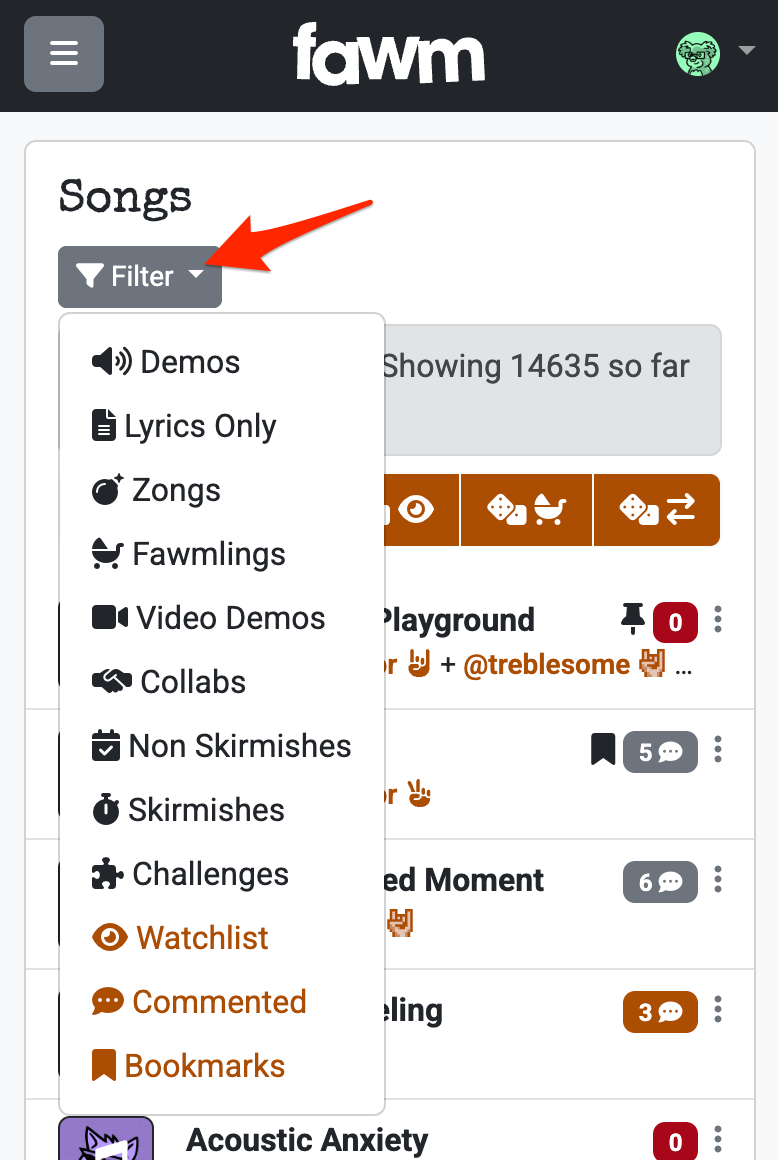
You can use these to view only songs that match certain criteria: songs with different kinds of demos, lyrics only, zongs, songs my fawmlings (first-time fawmers), collabs, skirmishes (as well as non-skirmishes), challenges, and so on.
The orange filter options at the bottom are specific to your account:
- Watchlist: Songs by fawmers you are "following" (see below)
- Commented: Find songs you have already commented on
- Bookmarks: Easily find songs you have bookmarked for later (see below)
Once you apply a filter, it will appear next to the Filter drop-down as a reminder, along with a "Clear filters" link to easily remove it. You can currently have only one filter at a time. It's on our development roadmap to allow you to mix-and-match filters at some point in the future.
Filters Are Persistent
When you apply a filter to the Songs page and then navigate away, the filter will remain active the next time you return to the songs page until you remove it!
Bookmarks
Did you find a song you want to save for later? Use the bookmark feature!
- From a song list: Click the "dots" menu [] and select "Bookmark" to save any song.
- From a song page: Click the bookmark button on the top right corner of the page. The icon will fill in to show the song has been bookmarked.
Bookmarks can have many uses:
- A "to do" list of songs that caught your eye while you were unable to comment
- A set of "favorites" you've heard and want to return to
- Potential "open" collab candidates you might want to contribute to
- Any other use you can think of!
To view all your bookmarked songs, go to the Songs page and select "Bookmarks" from the Filter drop-down. This gives you a personalized queue of the songs you have saved.
To remove a bookmark, simply click the bookmark button again or select "Remove bookmark" from the "dots" menu.
Tip: Bookmarks vs. Watchlists
Bookmarks are for saving specific songs you want to return to. Watchlists are for following specific fawmers so you see all their new songs. Use both to stay on top of the music you care about!
Random Buttons
Are you in a commenting mood, but feel overwhelmed trying to choose among all this music? Let one of the random buttons pick a song for you!
- From the Songs page: A row of buttons appears just above the song list, once a sufficient number of songs have been posted (usually 1-2 days into the challenge)
- From any page: Click a giant random button in the sidebar (or footer, on mobile)
There are five different buttons, each targeting slightly different criteria:
- Random: Any song that isn't private
- Zong: A zong, or song with no comments yet
- Watchlist: A song by someone in your watchlist (see below)
- Fawmling: A song by a first-time fawmer
- Reciprocate: A song by someone who has commented on your songs, but you have not yet commented on any of theirs
Note that the random buttons disappear from the songs page if you have a Filter applied.
A few details about the Random algorithm
The underlying algorithm picks songs at random, although it does "weight" or "bias" the random distribution toward certain songs, based on many, many factors. Things that increase a song's weight include: how recently it was posted, whether it has a demo and/or lyrics, what tags were used, whether it has been pinned and/or bookmarked, how many comments it has already received (but only the first few; comment popularity has "diminishing returns"), as well as how recently any of those things happened. Things that decrease the weight include: if it already has many comments, whether it is a skirmish or a collab (both of which tend to receive more comments than average), and how long it has been since anyone interacted with the song in any way.
In short: the algorithm is mostly random, but it also tries to strike a balance of songs that have been overlooked so far, and/or you are more likely to want to comment on.
Fawmers
The Fawmers page is where you can find fellow fawmers, and manage your connections with them. Similar to song listings, there's a lot to unpack here:
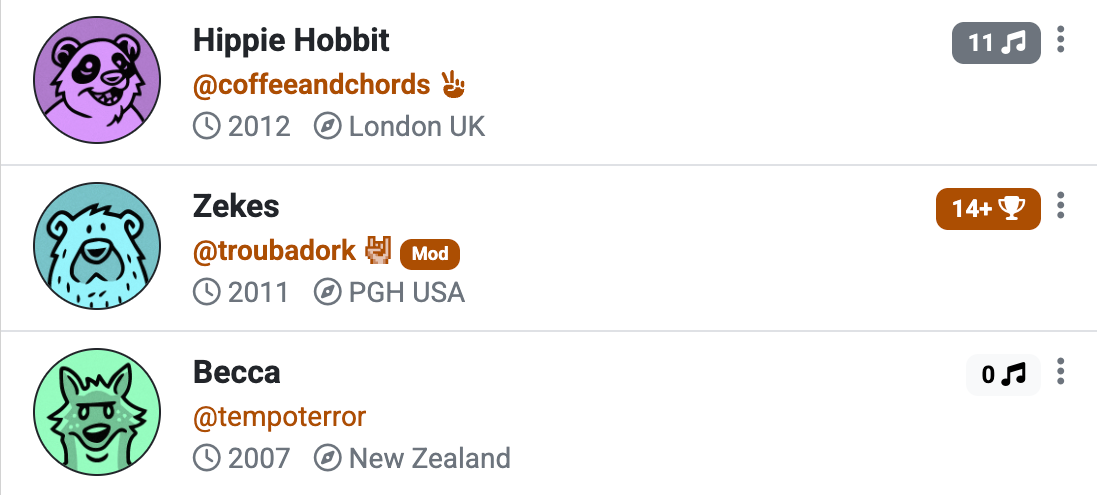
Each row represents a fawmer's profile, with the following elements, left-to-right:
- Avatar Image
- This is a link to the fawmer's profile
- Display Name and Username, plus meta-data
- Both display name and username are links to the fawmer's profile
- If the fawmer has donated, you will see their "rock hands" 🤘
- If the fawmer is a moderator/admin, you will also see a "MOD" badge
- At the bottom: the year they signed up, and their location
- Challenge Status
- Their number of songs so far
- Orange badge = they have "won" (i.e., posted 14+ songs)
- Gray badge = they're on their way to "winning" 😉
- White badge = they're registered, but aren't participating this year
There is also a "dots" menu [] for additional options, like following (a.k.a., "watchlisting", see below), muting or blocking, or reporting abuse.
Inactive accounts
By default, the Fawmers page only shows people who have logged in and are participating in this year's challenge. That way you don't have to wade through many thousands of profiles (many of which are spam). However, search results (see above) and certain fawmer filters (see below) will still list inactive accounts.
Watchlists
The watchlist feature is a way to "follow" the musical progress of other fawmers.
- From the Fawmers list page: Click the "dots" menu [] and select "Follow."
- From a fawmer's profile page: Click the big Follow button (if it is enabled), located just under their username and next to their avatar image.
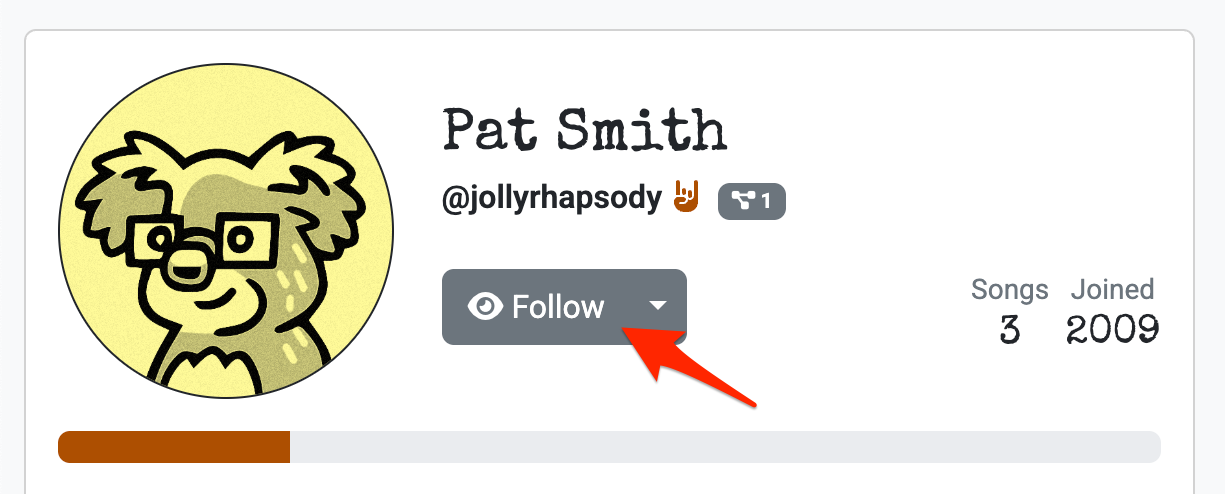
New songs by watchlisted fawmers will now appear in the "Songs" tab of your home feed.
To remove a fawmer from your watchlist, simply click the Unfollow button (in the same location), or select "Unfollow" from the "dots" menu in a list.
Filters
The fawmers page also has a Filter drop-down menu just above the user list:
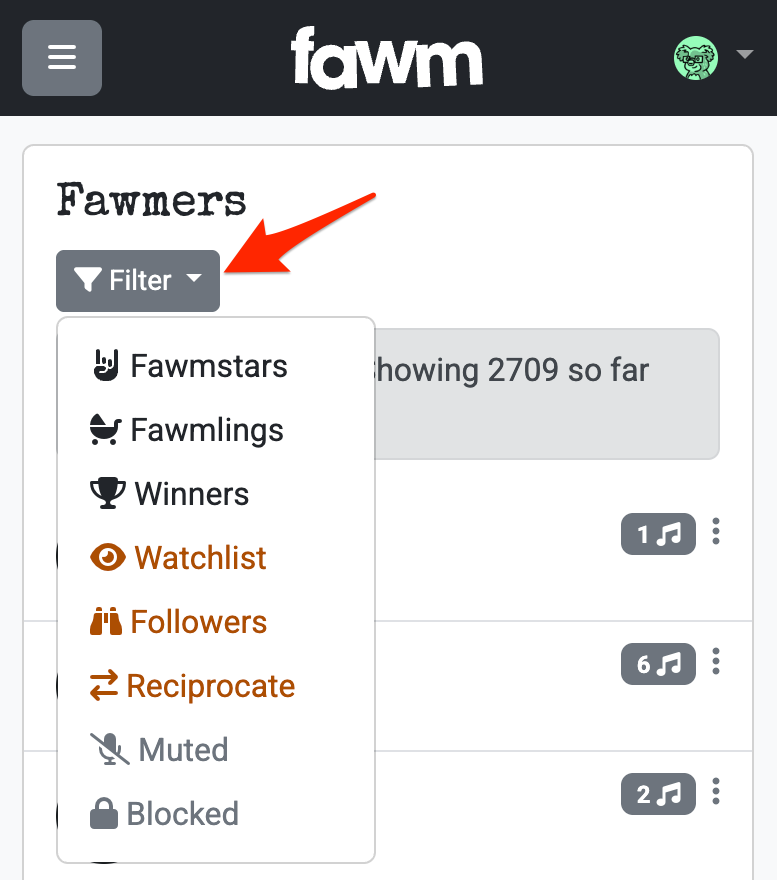
With these you can find "fawmstars" (people who have donated), "fawmlings" (first-year fawmers), and "winners" (those who have reached the 14-song goal). There are also some special personalized filters:
- Watchlist: Accounts you follow (see above)
- Followers: Accounts who follow you and your songs
- Reciprocate: Fawmers who have commented on your songs, but you have not yet commented on any of theirs
You can also easily find accounts you have muted or blocked in case you change your mind.
As with song filters, profile filters persist when you navigate away from the list, until you remove them.
Forums
The Forums are a great place to ask questions, talk about the songwriting process, talk look for collaborators, play songwriting games and challenges, talk shop about recording methods and gear, organize local in-person fawmer events in your area, and so on...
See Comments & Forums for the mechanics of starting and managing threads or discussions.
As with songs and profiles, there are several things to unpack from each forum listing:
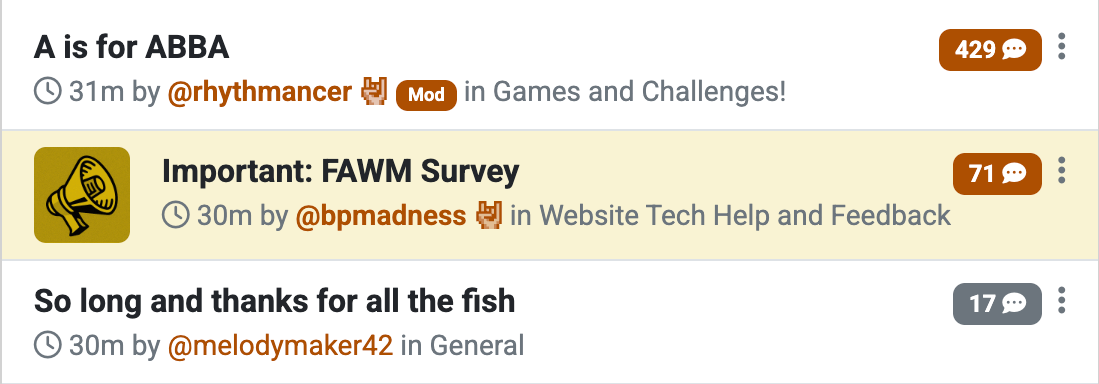
- Thread Title
- This is a link to the thread's discussion
- At the bottom: how long ago the thread was last updated, by whom, and in what forum category/topic
- Post Status
- The number of posts so far
- Orange badge = you have already posted in this thread
- Gray badge = you have not posted in this thread
- Announcements:
- General announcements from the FAWM moderator team will appear highlighted in yellow with a "blowhorn" illustration
And of course there is a "dots" menu [] to the far right of each listing for additional options, such as muting or reporting abuse.
Filters
There is also use the Filter drop-down menu just above the forum thread list:
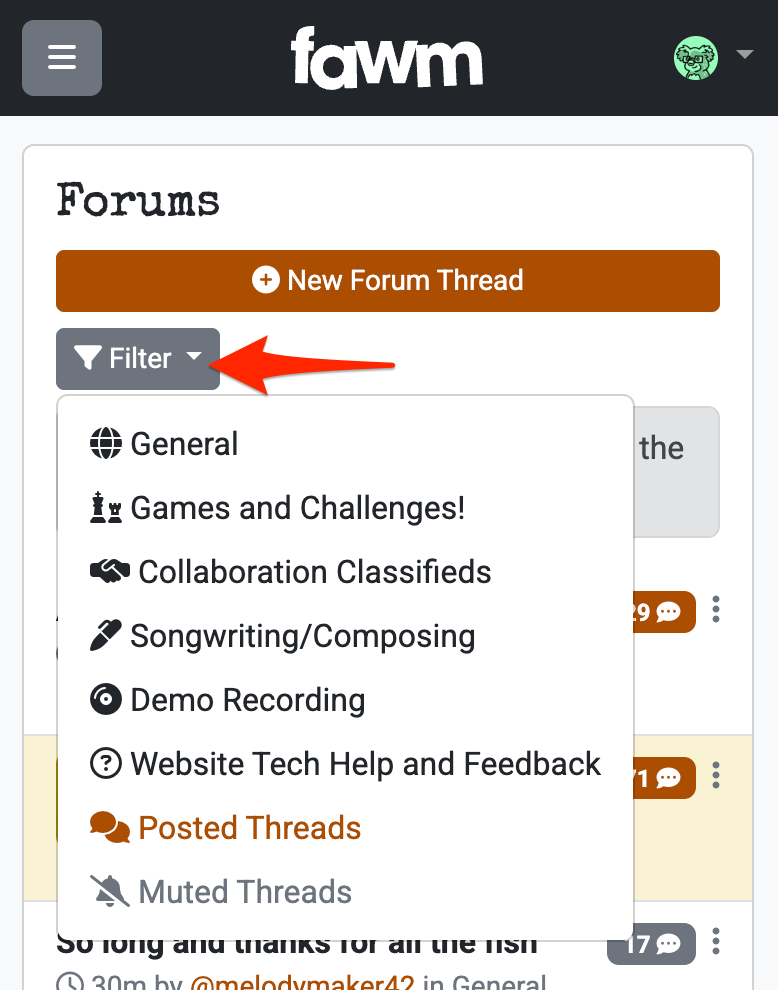
This allows you to view forums by category, as well as two special personalized filters for threads you have posted to, and threads you have muted.
As with song and profile filters, a forum filter will persist after you navigate away and then return to the list, until you remove it.